
inGuide | Digital Marketing, Online Business & WordPress
  • Home
  • Blog
  • Deals
  • Services
  • Forum
    • New Forum
  • Free Resources
    • inSend: Mailwizz
  • Contact
  • Click to open the search input field Click to open the search input field Search
  • Menu Menu
Wordpress

Super Easy Way to Install WordPress on Cloud Hosting in 5 min

install-wordpress-cloud-hosting

Installing WordPress on cloud hosting is no simple task. Before you install WordPress you need to install several software packages like apache or Nginx, database, PHP, etc. Unless you are experienced it’s very easy to get lost on the command-line interface. And that’s not all, if any issue pops up ever, you might have to spend countless hours to fix that.

Luckily, we have a great solution to this problem. Easyengine team has made the installation of WordPress super easy. All you need is to just execute few lines of command and all the necessary package needed will get installed.

Requirements for WordPress Installation

  • A domain name from Namecheap or Namesilo
  • A cloud hosting from any of the service provider. You must install Ubuntu 18.04 on the server.

I will be using Contabo, Google Cloud, Oracle Cloud, and DigitalOcean for the installation.

Adding DNS Records

After the above step go to your domain registrar and create these two DNS records.

HostTypeValue
@A1.2.3.4
wwwA1.2.3.4

Initial Setup of Cloud

First of all, you need to install Ubuntu 18.04 on your Linux server. Then connect to your server. If you are on Windows you will need a special SSH client called Putty, but Mac and Linux users can connect to the server from the terminal.
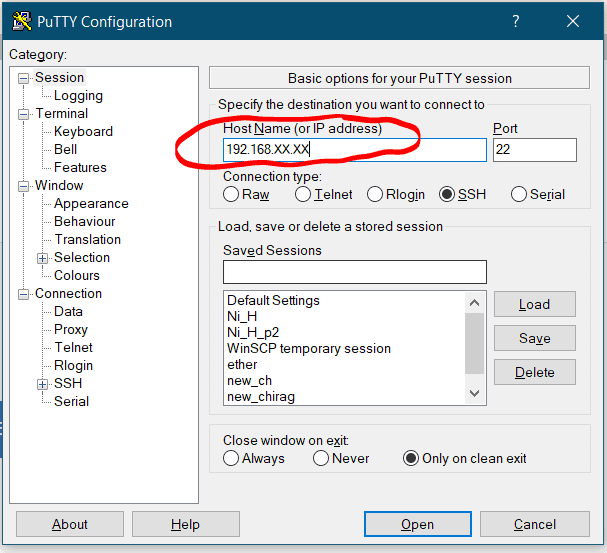
putty-connect-to-the-server

Switch to root user

sudo -i

Next, update the server with the following command

apt update && apt upgrade -y

Setting up hostname (optional)

hostnamectl set-hostname node.example.com

Installing WordPress on Cloud

After you have completed the above steps execute the following command to install necessary packages and dependencies on your server.

wget -qO ee https://rt.cx/ee4 && sudo bash ee

Before you execute the next line of command which will install WordPress, check if DNS records propagated or not, otherwise, you will get an SSL error.

ping example.com

The output of the above command must show the IP address of your server.

Now, it’s time to install WordPress.

ee site create example.com --type=wp --cache --ssl=le

The above command will install WordPress on your cloud with cache and let’s encrypt SSL, all in one command. But just in case if you don’t want to install Let’s Encrypt SSL or Cache then just get rid of that part in the command.

ee site create example.com --type=wp

You can also create multisite WordPress in a subdirectory using the following command.

ee site create example.com --type=wp --mu=wpsubdir --cache

Once WordPress installation finishes you will receive all the credentials to login and manage WordPress. Also, if you like to explore more feel free to check easyengine. There you will find different commands for a different purposes.

Now, log in to WordPress and start working on your dream.

If you want to migrate your WordPress from shared hosting to Cloud hosting, then you can make use of plugins like UpdraftPlus.

Fix for EasyEngine 523 error after restarting Cloud

When you restart your cloud or VPS, the WordPress website won’t come live itself. You can say it’s an inherent shortcoming of docker rather than easyengine.

Therefore, you need to start services to enable WordPress.

Run the following command as per your requirements.

cd /opt/easyengine/services/ && sudo docker-compose down && sudo docker-compose up -d

The above command will restart docker and enable all your websites.

If you want to enable only certain websites then execute the following commands

cd /opt/easyengine/sites/example.com/ && sudo docker-compose down && sudo docker-compose up -d

There are other commands as well that can help you to restart a website like below

ee site disable example.com
ee site enable example.com

Conclusion

Installing and Managing WordPress on cloud hosting is super easy with Easyengine.

March 30, 2021/10 Comments/by Dhiraj Rahul
Tags: easyengine, install wordpress, install wordpress on google, wordpress on cloud hosting
Share this entry
  • Share on Facebook
  • Share on X
  • Share on WhatsApp
  • Share on Pinterest
  • Share on LinkedIn
  • Share on Tumblr
  • Share on Vk
  • Share on Reddit
  • Share by Mail
https://inguide.in/wp-content/uploads/2021/03/install-wordpress.jpg 720 1280 Dhiraj Rahul https://inguide.in/wp-content/uploads/2021/02/inguide_logo_red_340_156-300x138.png Dhiraj Rahul2021-03-30 01:35:412021-08-27 05:07:37Super Easy Way to Install WordPress on Cloud Hosting in 5 min
10 replies
  1. Muhammad Umar Tahir
    Muhammad Umar Tahir says:
    August 24, 2021 at 8:46 pm

    How to add Freenom domains .tk or etc with oracle cloud please tell me because @ A record not available in freenom. Thank You!

    Reply
    • Dhiraj Rahul
      Dhiraj Rahul says:
      August 25, 2021 at 1:56 pm

      You can use cloudflare DNS

      Reply
  2. arda
    arda says:
    October 8, 2021 at 7:11 am

    No cpanel. How do I get access to my files? Like wp-config.php. or the add-ins folder. And how do I get to phpmyadmin? to install sql from the previous site

    Reply
    • Dhiraj Rahul
      Dhiraj Rahul says:
      October 10, 2021 at 2:03 am

      Yes, there’s no Control panel. I usually make use of Updraftplus to migrate websites. You can access wp-config.php from command line.

      Reply
      • arda
        arda says:
        October 18, 2021 at 9:48 am

        And how can I do that? ? WP File Manager also does not show wp-config.php ..

        Reply
        • Mesut Surmeli
          Mesut Surmeli says:
          October 18, 2021 at 11:42 am

          1- install WP manager plugin
          2- Preferances
          3- Public Root Path (edit /var/ )
          4- WP File Manager main page
          5- Click www Folder

          Thats it 👍

          Reply
  3. Gru
    Gru says:
    June 28, 2022 at 6:26 am

    How do we ssh into the WordPress on terminal

    Reply
    • Dhiraj Rahul
      Dhiraj Rahul says:
      June 28, 2022 at 3:35 pm

      Login to the server with putty and in order to go to WP directory, use “cd” command.
      If you could be more specific with your goal, I might be able to guide better.

      Reply
  4. Senuth Dilnada
    Senuth Dilnada says:
    June 28, 2023 at 1:55 pm

    Hi there I’m from sri lanka

    I want to add mu .lk domain to this but when I enetered the code ”
    ee site create example.com –type=wp –cache –ssl=le ” by adding my domain name instead of example.com as electrolodge.lk I am getting an message on the putty screen as ” /usr/bin/env: ‘php’: No such file or directory ”

    what can I do ?

    Reply
    • Kranthi
      Kranthi says:
      October 25, 2023 at 5:27 am

      I have the same issue. Can you please clarify.

      Reply

Leave a Reply

Want to join the discussion?
Feel free to contribute!

Leave a Reply Cancel reply

Your email address will not be published. Required fields are marked *

Table of Contents

Search Search

Recent Posts

  • Install Mattermost on Ubuntu/Debian
  • 17 Popular Free & Paid Mail Transfer Agents
  • Top 10 VPN Service Providers & Why!!
  • 15 Best Canva Alternatives for Graphic Design [Free & Paid]
  • 12 Best third-party SEO tools for your website
  • Best NFT Marketplace For Beginners
  • Best WordPress ad management plugin
  • What is Domain Name System blacklist (DNSBL)?
  • Introduction to the Basics of Linux
  • What is Proxy Server?

Categories

  • Chat & Collaboration
  • Domain
  • Email Marketing
  • Email Service
  • Graphic Design
  • Hosting
  • Learning Management System
  • Linux
  • Miscellaneous
  • Proxy
  • Search Engine Optimization
  • SMS
  • SMTP server
  • WooCommerce
  • Wordpress
  • WP Security
Popular
  • Postal-smtp-server
    Build Postal SMTP Server & Send Bulk Emails Step by...March 25, 2021 - 5:19 am
  • install-configure-powermta-centos-8
    Install & Configure PowerMTA on CentOS with IP rot...February 15, 2021 - 4:23 am
  • postal-create-SMTP-add-domain-SSL
    Simplest Way to Configure Postal & Create SMTP + Install...March 27, 2021 - 9:20 am
  • Install CyberPanel on Ubuntu and Create WordPress Websi...September 22, 2021 - 10:05 am
  • Create Mail Server on Windows with Open Source hMailSer...June 13, 2021 - 10:15 am
  • zimbra-free-ssl-certificate-install
    How to Install Free SSL Certificate on Zimbra Mail Serv...May 9, 2021 - 2:21 pm
  • install-zimbra-mail-server-on-centos-8
    Install Zimbra Mail Server on CentOS 7/8 Step by StepMay 9, 2021 - 6:05 am
  • Install and Configure MailCow – Best Self Hosted Mail...May 12, 2021 - 10:32 am
  • lets-encypt-certificate
    Installing Let’s Encrypt Free SSL Certificate on ...March 24, 2021 - 7:36 am
  • install-wordpress-cloud-hosting
    Super Easy Way to Install WordPress on Cloud Hosting in...March 30, 2021 - 1:35 am
Comments
  • vikasCannot "Build a new mail server" #3295 On a fresh installation...May 15, 2025 - 1:19 pm by vikas
  • SivaHow can find about aol blocking and know about email inbox...February 26, 2025 - 7:04 pm by Siva
  • RAKESH GUPTAWe want to change our default CentOS Mail Server to something...December 5, 2024 - 7:15 am by RAKESH GUPTA
  • LavisHey, Can you help me to choose good SMTP server between...November 18, 2024 - 11:12 am by Lavis
  • ApostleThis question is never answeredOctober 29, 2024 - 6:19 am by Apostle
Tags
Ahrefs Aol Canva dkim dkim generator dkim powermta dmarc generator easyengine email deliverability free Gmail install docker ubuntu install free ssl zimbra install mailcow install mailwizz install wordpress install wordpress on google install zimbra centos 8 iredmail mailcow Mailu mailu docker compose mailwizz Memberpress MTA open source chat app outlook Plugin Postal postal server postal smtp private chat server rocket.chat SEO smtp server spf generator Talos VPN WooCommerce WordPress wordpress on cloud hosting Yahoo zimbra zimbra mail server zimbra ssl

Follow us on Facebook

X Logo X Logo Followon X

Information

  • About
  • Account
  • Blog
  • Contact
  • Deals
  • List of VPS Hosting that Provides Open Port 25
  • Login
  • Newsletter
  • Privacy Policy
  • Terms of Service
  • Thank You
  • Verify Account

Resources

  • Account
  • Deals
  • Downloads
  • List of VPS Hosting that Provides Open Port 25
  • Login
  • Services
  • Thank You
  • Verify Account

Categories

  • Chat & Collaboration
  • Domain
  • Email Marketing
  • Email Service
  • Graphic Design
  • Hosting
  • Learning Management System
  • Linux
  • Miscellaneous
  • Proxy
  • Search Engine Optimization
  • SMS
  • SMTP server
  • WooCommerce
  • Wordpress
  • WP Security

Archive

  • November 2025
  • July 2023
  • June 2023
  • May 2023
  • January 2023
  • November 2022
  • September 2022
  • August 2022
  • July 2022
  • June 2022
  • May 2022
  • September 2021
  • June 2021
  • May 2021
  • April 2021
  • March 2021
  • February 2021
© Copyright - inGuide | Digital Marketing, Online Business & WordPress
  • Terms of Service
  • Privacy Policy
Link to: Simplest Way to Configure Postal & Create SMTP + Install SSL Link to: Simplest Way to Configure Postal & Create SMTP + Install SSL Simplest Way to Configure Postal & Create SMTP + Install SSLpostal-create-SMTP-add-domain-SSL Link to: Ultimate Guide to Install & Configure Mailwizz on Cloud Link to: Ultimate Guide to Install & Configure Mailwizz on Cloud ultimate-guide-install-configure-mailwizzUltimate Guide to Install & Configure Mailwizz on Cloud
Scroll to top Scroll to top Scroll to top